<?xml version="1.0" encoding="UTF-8"?>
<feed xmlns="http://www.w3.org/2005/Atom">
	<title>MyVPN.work</title>
	<link href="http://myvpn.work/atom.php" rel="self" />
	<link href="http://myvpn.work/" />
	<id>http://myvpn.work/index.php</id>
	<updated>2026-10-24T08:04:45Z</updated>
	<author>
		<name>myvpn.work@localhost</name>
		<email>myvpn.work@localhost</email>
	</author>
	<entry>
		<title>Explore the Global Network with Ease! MyVPN macOS / iOS Quick Connection Guide</title>
		<link href="http://myvpn.work/index.php?entry=entry260821-191434" />
		<link rel="alternate" type="text/html" href="http://myvpn.work/index.php?entry=entry260821-191434" />
		<link rel="edit" href="http://myvpn.work/index.php?entry=entry260821-191434" />
		<id>http://myvpn.work/index.php?entry=entry260821-191434</id>
		<summary type="html"><![CDATA[<h1 style="border: none; padding: 0cm;"><font color="#007bff">Explore the Global Network with Ease! MyVPN macOS / iOS Quick Connection Guide</font></h1>
<p class="subtitle"><font color="#6c757d">Bypass restrictions smoothly with Apple's native security framework—no complex setup required.</font></p>

<h2 style="margin-top: 0.79cm; margin-bottom: 0.79cm; border-top: none; border-bottom: none; border-left: 2.50pt solid #007bff; border-right: none; padding-top: 0cm; padding-bottom: 0cm; padding-left: 0.26cm; padding-right: 0cm; widows: 2; orphans: 2;">
    <font color="#343a40" face="apple-system, BlinkMacSystemFont, Segoe UI, Roboto, Helvetica Neue, Arial, sans-serif" size="4">🛠️ Preparation Before Connection</font>
</h2>

<p style="margin-top: 0.79cm; margin-bottom: 0.79cm; border: 1px solid #e9ecef; padding: 0.53cm; font-style: normal; font-weight: normal; widows: 2; orphans: 2;">
    <font color="#343a40" face="apple-system, BlinkMacSystemFont, Segoe UI, Roboto, Helvetica Neue, Arial, sans-serif" size="4"><span style="background: #f8f9fa;">Before you begin, please ensure you have obtained the following required configuration profile:</span></font>
</p>

<ul>
    <li style="margin-bottom: 0.26cm; border: none; padding: 0cm; widows: 2; orphans: 2;">
        <strong><font color="#343a40" face="apple-system, BlinkMacSystemFont, Segoe UI, Roboto, Helvetica Neue, Arial, sans-serif" size="4"><span style="background: #f8f9fa;">1. Connection Profile: </span></font></strong>
        <font color="#343a40" face="apple-system, BlinkMacSystemFont, Segoe UI, Roboto, Helvetica Neue, Arial, sans-serif" size="4"><span style="background: #f8f9fa;">Obtain the </span></font>
        <code><font color="#343a40" face="apple-system, BlinkMacSystemFont, Segoe UI, Roboto, Helvetica Neue, Arial, sans-serif" size="4"><span style="background: #f8f9fa;">vpnclient.mobileconfig</span></font></code>
        <font color="#343a40" face="apple-system, BlinkMacSystemFont, Segoe UI, Roboto, Helvetica Neue, Arial, sans-serif" size="4"><span style="background: #f8f9fa;"> Apple-specific configuration profile generated by our site.</span></font>
    </li>
    <li style="margin-top: 0.13cm; margin-bottom: 0.26cm; border: none; padding: 0cm; widows: 2; orphans: 2;">
        <strong><font color="#343a40" face="apple-system, BlinkMacSystemFont, Segoe UI, Roboto, Helvetica Neue, Arial, sans-serif" size="4"><span style="background: #f8f9fa;">2. Native Support (No App Required): </span></font></strong>
        <font color="#343a40" face="apple-system, BlinkMacSystemFont, Segoe UI, Roboto, Helvetica Neue, Arial, sans-serif" size="4"><span style="background: #f8f9fa;">macOS and iOS have full, built-in VPN support. There is no need to download third-party software like strongSwan from the App Store. Simply tap the profile below to automatically configure your settings.</span></font>
    </li>
</ul>

<h1 style="border: none; padding: 0cm;"><font color="#007bff">輕鬆探索全球網路！MyVPN 手機端 macOS / iOS 快速連線指南</font></h1>
<p class="subtitle"><font color="#6c757d">免去繁瑣設定，使用 Apple 原生安全架構流暢翻牆</font></p>

<h2 style="margin-top: 0.79cm; margin-bottom: 0.79cm; border-top: none; border-bottom: none; border-left: 2.50pt solid #007bff; border-right: none; padding-top: 0cm; padding-bottom: 0cm; padding-left: 0.26cm; padding-right: 0cm; widows: 2; orphans: 2;">
    <font color="#343a40" face="apple-system, BlinkMacSystemFont, Segoe UI, Roboto, Helvetica Neue, Arial, sans-serif" size="4">🛠️連線前準備</font>
</h2>

<p style="margin-top: 0.79cm; margin-bottom: 0.79cm; border: 1px solid #e9ecef; padding: 0.53cm; font-style: normal; font-weight: normal; widows: 2; orphans: 2;">
    <font color="#343a40" face="apple-system, BlinkMacSystemFont, Segoe UI, Roboto, Helvetica Neue, Arial, sans-serif" size="4"><span style="background: #f8f9fa;">在開始連線前，請先確保您已取得以下必備設定檔：</span></font>
</p>

<ul>
    <li style="margin-bottom: 0.26cm; border: none; padding: 0cm; widows: 2; orphans: 2;">
        <strong><font color="#343a40" face="apple-system, BlinkMacSystemFont, Segoe UI, Roboto, Helvetica Neue, Arial, sans-serif" size="4"><span style="background: #f8f9fa;">1. 連線設定檔：</span></font></strong>
        <font color="#343a40" face="apple-system, BlinkMacSystemFont, Segoe UI, Roboto, Helvetica Neue, Arial, sans-serif" size="4"><span style="background: #f8f9fa;">取得由本站生成的 </span></font>
        <code><font color="#343a40" face="apple-system, BlinkMacSystemFont, Segoe UI, Roboto, Helvetica Neue, Arial, sans-serif" size="4"><span style="background: #f8f9fa;">vpnclient.mobileconfig</span></font></code>
        <font color="#343a40" face="apple-system, BlinkMacSystemFont, Segoe UI, Roboto, Helvetica Neue, Arial, sans-serif" size="4"><span style="background: #f8f9fa;"> 蘋果系統專用描述檔。</span></font>
    </li>
    <li style="margin-top: 0.13cm; margin-bottom: 0.26cm; border: none; padding: 0cm; widows: 2; orphans: 2;">
        <strong><font color="#343a40" face="apple-system, BlinkMacSystemFont, Segoe UI, Roboto, Helvetica Neue, Arial, sans-serif" size="4"><span style="background: #f8f9fa;">2. 內建免 App：</span></font></strong>
        <font color="#343a40" face="apple-system, BlinkMacSystemFont, Segoe UI, Roboto, Helvetica Neue, Arial, sans-serif" size="4"><span style="background: #f8f9fa;">macOS / iOS 系統已內建完整的 VPN 支援，不需額外至 App Store 下載 strongSwan 等第三方軟體，直接點擊下方描述檔即可自動設定。</span></font>
    </li>
</ul>

<h2 style="margin-top: 0.79cm; margin-bottom: 0.79cm; border-top: none; border-bottom: none; border-left: 2.50pt solid #007bff; border-right: none; padding-top: 0cm; padding-bottom: 0cm; padding-left: 0.26cm; padding-right: 0cm; widows: 2; orphans: 2;">
    <font color="#343a40" face="apple-system, BlinkMacSystemFont, Segoe UI, Roboto, Helvetica Neue, Arial, sans-serif" size="4">📝簡單步驟，立即開通安全連線</font>
</h2>

<p style="margin-top: 0.79cm; margin-bottom: 0.79cm; widows: 2; orphans: 2;">
    <font color="#343a40" face="apple-system, BlinkMacSystemFont, Segoe UI, Roboto, Helvetica Neue, Arial, sans-serif" size="4">Apple 系統的設定非常直覺，請跟著以下指引操作：</font>
</p>

<h2 style="margin-top: 0.79cm; margin-bottom: 0.79cm; border-top: none; border-bottom: none; border-left: 2.50pt solid #007bff; border-right: none; padding-top: 0cm; padding-bottom: 0cm; padding-left: 0.26cm; padding-right: 0cm; widows: 2; orphans: 2;">
    <font color="#343a40" face="apple-system, BlinkMacSystemFont, Segoe UI, Roboto, Helvetica Neue, Arial, sans-serif" size="4">📝 Simple Steps to Activate Your Secure Connection</font>
</h2>

<p style="margin-top: 0.79cm; margin-bottom: 0.79cm; widows: 2; orphans: 2;">
    <font color="#343a40" face="apple-system, BlinkMacSystemFont, Segoe UI, Roboto, Helvetica Neue, Arial, sans-serif" size="4">Setting up on Apple devices is highly intuitive. Please follow the instructions below:</font>
</p>

<ul>
    <li style="margin-right: 0.26cm; margin-bottom: 0.53cm; background: #ffffff; border: 1px solid #e9ecef; padding: 0.53cm; line-height: 0.74cm; widows: 2; orphans: 2;">
        <font color="#343a40" face="apple-system, BlinkMacSystemFont, Segoe UI, Roboto, Helvetica Neue, Arial, sans-serif" size="4">
            <span style="color: #ffffff; background: #007bff; padding: 2px 8px; font-weight: bold; border-radius: 3px;">1</span>
            <strong> Download and Install the Profile: </strong>Click to download the 
            <a href="/MyVPN1click/vpnclient.mobileconfig" target="_blank" download="">vpnclient.mobileconfig</a> file. Allow the download when prompted by the system, then navigate to "System Settings" (macOS) or "Settings" &gt; "Profile Downloaded" (iOS) to install and trust it for an instant setup.
        </font>
    </li>
</ul>


<ul>
    <li style="margin-right: 0.26cm; margin-bottom: 0.53cm; background: #ffffff; border: 1px solid #e9ecef; padding: 0.53cm; line-height: 0.74cm; widows: 2; orphans: 2;">
        <font color="#343a40" face="apple-system, BlinkMacSystemFont, Segoe UI, Roboto, Helvetica Neue, Arial, sans-serif" size="4">
            <span style="color: #ffffff; background: #007bff; padding: 2px 8px; font-weight: bold; border-radius: 3px;">1</span>
            <strong> 下載並安裝描述檔：</strong>點擊下載 
            <a href="/MyVPN1click/vpnclient.mobileconfig" target="_blank" download="">vpnclient.mobileconfig</a> 檔案。依系統提示允許下載後，前往「系統設定」（macOS）或「設定」&gt;「已下載描述檔」（iOS）點選安裝並信任，即可完成一鍵設定。
        </font>
    </li>
</ul>


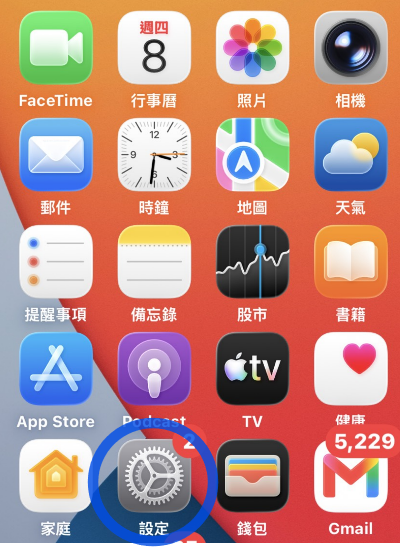
	<LI><P STYLE="margin-right: 0.26cm; margin-bottom: 0.53cm; background: #ffffff; border: none; padding: 0cm; line-height: 0.74cm; widows: 2; orphans: 2"><A NAME="docs-internal-guid-8e6361d8-7fff-3bfe-5bec-db1e85d10545"></A>
	<FONT FACE="Times New Roman, serif"><SPAN LANG="en-US"><FONT COLOR="#ffffff"><FONT FACE="apple-system, BlinkMacSystemFont, Segoe UI, Roboto, Helvetica Neue, Arial, sans-serif"><FONT SIZE=4><B><SPAN STYLE="background: #007bff">2</SPAN></B></FONT></FONT></FONT><FONT COLOR="#343a40"><FONT FACE="apple-system, BlinkMacSystemFont, Segoe UI, Roboto, Helvetica Neue, Arial, sans-serif"><FONT SIZE=4>
	</FONT></FONT></FONT></SPAN></FONT><FONT COLOR="#000000"><SPAN STYLE="text-decoration: none"><SPAN STYLE="background: transparent"><FONT FACE="Arial, sans-serif"><FONT SIZE=4><SPAN STYLE="font-style: normal"><SPAN STYLE="font-weight: normal">回到
	</SPAN></SPAN></FONT></FONT></SPAN></SPAN></FONT><FONT FACE="Times New Roman, serif"><SPAN LANG="en-US"><FONT COLOR="#000000"><SPAN STYLE="text-decoration: none"><FONT FACE="Arial, sans-serif"><FONT SIZE=4><SPAN STYLE="font-style: normal"><SPAN STYLE="font-weight: normal"><SPAN STYLE="background: transparent">iPhone
	</SPAN></SPAN></SPAN></FONT></FONT></SPAN></FONT></SPAN></FONT><FONT COLOR="#000000"><SPAN STYLE="text-decoration: none"><SPAN STYLE="background: transparent"><FONT FACE="Arial, sans-serif"><FONT SIZE=4><SPAN STYLE="font-style: normal"><SPAN STYLE="font-weight: normal">主畫面，打開
	</SPAN></SPAN></FONT></FONT></SPAN></SPAN></FONT><FONT COLOR="#000000"><SPAN STYLE="text-decoration: none"><SPAN STYLE="background: transparent"><FONT FACE="Arial, sans-serif"><FONT SIZE=4><SPAN STYLE="font-style: normal"><B>「設定」</B></SPAN></FONT></FONT></SPAN></SPAN></FONT><FONT COLOR="#343a40"><FONT FACE="apple-system, BlinkMacSystemFont, Segoe UI, Roboto, Helvetica Neue, Arial, sans-serif"><FONT SIZE=4>
	</FONT></FONT></FONT><FONT COLOR="#343a40"><FONT FACE="apple-system, BlinkMacSystemFont, Segoe UI, Roboto, Helvetica Neue, Arial, sans-serif"><FONT SIZE=4>。</FONT></FONT></FONT></P>


<IMG SRC="/MyVPN1click/ios/setup.png" NAME="圖形4" ALIGN=LEFT WIDTH=267 HEIGHT=365 BORDER=0><BR CLEAR=LEFT>
<P STYLE="margin-right: 0.26cm; margin-bottom: 0.53cm; background: #ffffff; border: none; padding: 0cm; line-height: 0.74cm; widows: 2; orphans: 2">
<BR><BR>
</P>
<UL>
	<LI><P STYLE="margin-right: 0.26cm; margin-bottom: 0.53cm; background: #ffffff; border: none; padding: 0cm; line-height: 0.74cm; widows: 2; orphans: 2"><A NAME="docs-internal-guid-df618448-7fff-7d22-f318-a8f5fee0fe29"></A>
	<FONT FACE="Times New Roman, serif"><FONT SIZE=4><SPAN LANG="en-US"><FONT COLOR="#ffffff"><FONT FACE="apple-system, BlinkMacSystemFont, Segoe UI, Roboto, Helvetica Neue, Arial, sans-serif"><B><SPAN STYLE="background: #007bff">3</SPAN></B></FONT></FONT><FONT COLOR="#343a40"><FONT FACE="apple-system, BlinkMacSystemFont, Segoe UI, Roboto, Helvetica Neue, Arial, sans-serif">
	</FONT></FONT></SPAN></FONT></FONT><FONT SIZE=4><FONT COLOR="#343a40"><SPAN STYLE="text-decoration: none"><SPAN STYLE="background: transparent"><FONT FACE="Calibri, sans-serif"><SPAN STYLE="font-style: normal"><SPAN STYLE="font-weight: normal">進入
	</SPAN></SPAN></FONT></SPAN></SPAN></FONT></FONT><FONT FACE="Times New Roman, serif"><FONT SIZE=4><SPAN LANG="en-US"><FONT COLOR="#343a40"><SPAN STYLE="text-decoration: none"><FONT FACE="Calibri, sans-serif"><SPAN STYLE="font-style: normal"><SPAN STYLE="font-weight: normal"><SPAN STYLE="background: transparent">iPhone
	</SPAN></SPAN></SPAN></FONT></SPAN></FONT></SPAN></FONT></FONT><FONT SIZE=4><FONT COLOR="#343a40"><SPAN STYLE="text-decoration: none"><SPAN STYLE="background: transparent"><FONT FACE="Calibri, sans-serif"><SPAN STYLE="font-style: normal"><SPAN STYLE="font-weight: normal">「設定」
	</SPAN></SPAN></FONT></SPAN></SPAN></FONT></FONT><FONT FACE="Times New Roman, serif"><FONT SIZE=4><SPAN LANG="en-US"><FONT COLOR="#343a40"><SPAN STYLE="text-decoration: none"><FONT FACE="Calibri, sans-serif"><SPAN STYLE="font-style: normal"><SPAN STYLE="font-weight: normal"><SPAN STYLE="background: transparent">&gt;
	</SPAN></SPAN></SPAN></FONT></SPAN></FONT></SPAN></FONT></FONT><FONT SIZE=4><FONT COLOR="#343a40"><SPAN STYLE="text-decoration: none"><SPAN STYLE="background: transparent"><FONT FACE="Calibri, sans-serif"><SPAN STYLE="font-style: normal"><SPAN STYLE="font-weight: normal">「一般」。</SPAN></SPAN></FONT></SPAN></SPAN></FONT><FONT COLOR="#000000"><SPAN STYLE="text-decoration: none"><SPAN STYLE="background: transparent"><FONT FACE="Calibri, sans-serif"><SPAN STYLE="font-style: normal"><SPAN STYLE="font-weight: normal">在「已下載的描述檔」下方看到您的
	</SPAN></SPAN></FONT></SPAN></SPAN></FONT></FONT><FONT FACE="Times New Roman, serif"><FONT SIZE=4><SPAN LANG="en-US"><FONT COLOR="#000000"><SPAN STYLE="text-decoration: none"><FONT FACE="Calibri, sans-serif"><SPAN STYLE="font-style: normal"><SPAN STYLE="font-weight: normal"><SPAN STYLE="background: transparent">VPN
	</SPAN></SPAN></SPAN></FONT></SPAN></FONT></SPAN></FONT></FONT><FONT SIZE=4><FONT COLOR="#000000"><SPAN STYLE="text-decoration: none"><SPAN STYLE="background: transparent"><FONT FACE="Calibri, sans-serif"><SPAN STYLE="font-style: normal"><SPAN STYLE="font-weight: normal">檔案了。</SPAN></SPAN></FONT></SPAN></SPAN></FONT></FONT></P>
</UL>
<UL>
	<P STYLE="margin-bottom: 0cm; background: transparent; line-height: 120%; text-decoration: none">
	<FONT COLOR="#000000"><SPAN STYLE="background: transparent"><FONT SIZE=4><FONT FACE="Calibri, sans-serif"><SPAN LANG="zh-TW"><SPAN STYLE="font-style: normal"><SPAN STYLE="font-weight: normal">或是</SPAN></SPAN></SPAN></FONT><FONT FACE="Calibri, sans-serif"><SPAN STYLE="font-style: normal"><SPAN STYLE="font-weight: normal">往下滑找到
	「</SPAN></SPAN></FONT></FONT><FONT FACE="Times New Roman, serif"><FONT SIZE=4><SPAN LANG="en-US"><FONT FACE="Calibri, sans-serif"><SPAN STYLE="font-style: normal"><SPAN STYLE="font-weight: normal">VPN
	</SPAN></SPAN></FONT></SPAN></SPAN></FONT></FONT><SPAN STYLE="background: transparent"><FONT SIZE=4><FONT FACE="Calibri, sans-serif"><SPAN STYLE="font-style: normal"><SPAN STYLE="font-weight: normal">與裝置管理」。</SPAN></SPAN></FONT></FONT></SPAN></FONT></P>
	<P STYLE="margin-bottom: 0cm; background: transparent; line-height: 120%">
	<FONT COLOR="#000000"><SPAN STYLE="text-decoration: none"><SPAN STYLE="background: transparent"><FONT FACE="Calibri, sans-serif"><FONT SIZE=4><SPAN STYLE="font-style: normal"><SPAN STYLE="font-weight: normal">點進去後，</SPAN></SPAN></FONT></FONT></SPAN></SPAN></FONT><FONT COLOR="#000000"><SPAN STYLE="text-decoration: none"><SPAN STYLE="background: transparent"><FONT FACE="Arial, sans-serif"><FONT SIZE=4><SPAN STYLE="font-style: normal"><SPAN STYLE="font-weight: normal">點擊它進去後，再點選右上角的
	</SPAN></SPAN></FONT></FONT></SPAN></SPAN></FONT><FONT COLOR="#000000"><SPAN STYLE="text-decoration: none"><SPAN STYLE="background: transparent"><FONT FACE="Arial, sans-serif"><FONT SIZE=4><SPAN STYLE="font-style: normal"><B>「安裝」</B></SPAN></FONT></FONT></SPAN></SPAN></FONT><FONT COLOR="#343a40"><FONT FACE="apple-system, BlinkMacSystemFont, Segoe UI, Roboto, Helvetica Neue, Arial, sans-serif"><FONT SIZE=4>。</FONT></FONT></FONT></P>
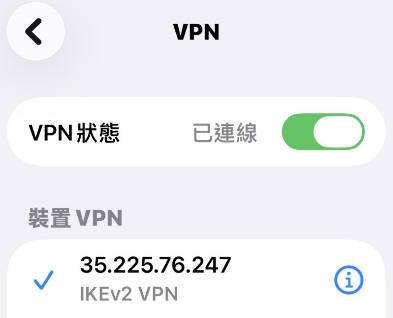
	<P LANG="zh-TW" STYLE="margin-bottom: 0cm; background: transparent; line-height: 120%">
	<FONT COLOR="#343a40"><FONT FACE="apple-system, BlinkMacSystemFont, Segoe UI, Roboto, Helvetica Neue, Arial, sans-serif"><FONT SIZE=4>回到</FONT></FONT></FONT><FONT COLOR="#000000"><SPAN STYLE="text-decoration: none"><SPAN STYLE="background: transparent"><FONT FACE="Calibri, sans-serif"><FONT SIZE=4><SPAN STYLE="font-style: normal"><SPAN STYLE="font-weight: normal">「</SPAN></SPAN></FONT></FONT></SPAN></SPAN></FONT><FONT FACE="Times New Roman, serif"><SPAN LANG="en-US"><FONT COLOR="#000000"><SPAN STYLE="text-decoration: none"><FONT FACE="Calibri, sans-serif"><FONT SIZE=4><SPAN STYLE="font-style: normal"><SPAN STYLE="font-weight: normal"><SPAN STYLE="background: transparent">VPN
	</SPAN></SPAN></SPAN></FONT></FONT></SPAN></FONT></SPAN></FONT><FONT COLOR="#000000"><SPAN STYLE="text-decoration: none"><SPAN STYLE="text-decoration: none"><SPAN STYLE="text-decoration: none"><SPAN STYLE="background: transparent"><FONT FACE="Calibri, sans-serif"><FONT SIZE=4><SPAN STYLE="font-style: normal"><SPAN STYLE="font-weight: normal">與裝置管理」開啟「</SPAN></SPAN></FONT></FONT><FONT FACE="Times New Roman, serif"><SPAN LANG="en-US"><FONT SIZE=4>VPN</SPAN></SPAN></SPAN></FONT></SPAN></FONT></SPAN></FONT><FONT COLOR="#000000"><SPAN STYLE="text-decoration: none"><SPAN STYLE="text-decoration: none"><SPAN STYLE="text-decoration: none"><SPAN STYLE="background: transparent"><FONT FACE="Calibri, sans-serif"><FONT SIZE=4><SPAN STYLE="font-style: normal"><SPAN STYLE="font-weight: normal">狀態」，輸入密碼通過之後</SPAN></SPAN></FONT></FONT><FONT FACE="Times New Roman, serif"><SPAN LANG="en-US"><FONT SIZE=4>VPN</SPAN></SPAN></SPAN></FONT></SPAN></FONT></SPAN></FONT><FONT COLOR="#000000"><SPAN STYLE="text-decoration: none"><SPAN STYLE="text-decoration: none"><SPAN STYLE="text-decoration: none"><SPAN STYLE="background: transparent"><FONT FACE="Calibri, sans-serif"><FONT SIZE=4><SPAN STYLE="font-style: normal"><SPAN STYLE="font-weight: normal">已連線</SPAN></SPAN></FONT></FONT></SPAN></SPAN></SPAN></SPAN></FONT></P>
</UL>
<P STYLE="margin-bottom: 0cm"><BR>
</P>
<P STYLE="margin-bottom: 0cm"><IMG SRC="/MyVPN1click/ios/ios_html_18ae6a00.png" NAME="圖形3" ALIGN=LEFT WIDTH=393 HEIGHT=318 BORDER=0><BR CLEAR=LEFT><BR>
</P>
]]></summary>
		<updated>2026-08-21T11:14:34Z</updated>
	</entry>
	<entry>
		<title>MyVPN 1-Click Secures Your Connection in One Click</title>
		<link href="http://myvpn.work/index.php?entry=entry260802-204047" />
		<link rel="alternate" type="text/html" href="http://myvpn.work/index.php?entry=entry260802-204047" />
		<link rel="edit" href="http://myvpn.work/index.php?entry=entry260802-204047" />
		<id>http://myvpn.work/index.php?entry=entry260802-204047</id>
		<summary type="html"><![CDATA[
    <!-- Header & Introduction -->
    <h1>Explore the Global Network with Ease!<br>
        <span style="color: #ff0000;">MyVPN 1-Click</span> <span style="color: #ff0000;">Secures Your Connection in One Click</span>
    </h1>
    
    <p>Frustrated by geo-restrictions? Simply download and install the 
        <a href="/MyVPN1click/vpnclient.mobileconfig" target="_blank" download>vpnclient.mobileconfig</a> profile. 
        No advanced configuration required—break through digital boundaries instantly.
    </p>
    <h1>輕鬆探索全球網路！<br>
        <span style="color: #ff0000;">MyVPN 1-Click</span> <span style="color: #ff0000;">讓您一鍵安全連線</span>
    </h1>
    
    <p>受到網路區域限制的困擾？只需下載並安裝 
        <a href="/MyVPN1click/vpnclient.mobileconfig" target="_blank" download>vpnclient.mobileconfig</a> 描述檔。
        免去繁複設定，即刻打破數位疆界。
    </p>
    <!-- 下載區塊 -->
    <div id="download" dir="LTR">
        <p>
            <a href="/MyVPN1click/vpnclient.mobileconfig" target="_blank" download>下載 macOS / iOS 描述檔 (vpnclient.mobileconfig)</a>
        </p>
    </div>

    <!-- 系統需求與重要備註 -->
    <p>支援系統：macOS / iOS (iPhone & iPad) |</p>
    
    <p><strong>重要備註：</strong><strong>下載後需前往系統「設定」安裝並信任此描述檔。</strong><br>
        免費試用帳號有時間限制，如中斷或逾時需等待一分鐘後，再次點擊 
        <a href="/MyVPN1click/vpnclient.mobileconfig" target="_blank" download>vpnclient.mobileconfig</a> 描述檔重新連線。<br>
        若您需要追求不中斷的穩定連線品質，請申請正式帳號。
    </p>

    <!-- 產品特點 -->
    <h3>免安裝一鍵描述檔連線</h3>
    <p>下載後直接執行的 Apple 標準配置描述檔 <a href="/MyVPN1click/vpnclient.mobileconfig" target="_blank" download>vpnclient.mobileconfig</a>。
        只需在系統提示中點選同意，系統便會自動為您完成最佳伺服器的連線設定。
        若連線中斷，您可以直接在系統的 VPN 設定中重新開啟，或再次載入描述檔連線。
    </p>

    <!-- Download Section -->
    <div id="download" dir="LTR">
        <p>
            <a href="/MyVPN1click/vpnclient.mobileconfig" target="_blank" download>Download macOS / iOS Profile (vpnclient.mobileconfig)</a>
        </p>
    </div>

    <!-- System Requirements & Important Notes -->
    <p>Supported OS: macOS / iOS (iPhone & iPad) |</p>
    
    <p><strong>Important Note:</strong> <strong>You must go to Settings to install and trust the configuration profile after downloading.</strong><br>
        The free trial account has a time limit. If disconnected or timed out, please wait one minute before opening the 
        <a href="/MyVPN1click/vpnclient.mobileconfig" target="_blank" download>vpnclient.mobileconfig</a> profile again to reconnect.<br>
        If you require a stable and uninterrupted connection, please apply for an official account.
    </p>

    <!-- Features -->
    <h3>Seamless One-Click Profile Connection</h3>
    <p>Simply download and run <a href="/MyVPN1click/vpnclient.mobileconfig" target="_blank" download>vpnclient.mobileconfig</a>, a standard Apple configuration profile. 
        The setup requires only a few taps—the system will automatically configure the best server for you. 
        If disconnected, you can directly re-engage the connection in your system VPN settings or reload the profile.
    </p>

    <!-- Connection Steps -->
    <p>1 Download the Profile</p>
    <p>Click the download link on the webpage to obtain the safe and secure 
        <code><a href="/MyVPN1click/vpnclient.mobileconfig" target="_blank" download>vpnclient.mobileconfig</a></code> file.
    </p>

    <p>3 Complete Setup <span style="background: #e6e6ff;">(Profile installation required in System Settings)</span></p>
    <p>After downloading, open your system Settings, tap "Profile Downloaded", and follow the prompts to install. You will successfully bypass restrictions and enjoy the global network within seconds.</p>

    <!-- FAQ Section -->
    <h2>Frequently Asked Questions FAQ</h2>
    
    <h4>Q: Is this profile safe? Does it contain malware?</h4>
    <p>Our configuration profile relies strictly on Apple's native VPN framework and contains no executable binaries or malware. Please feel safe to download and install it.</p>
    
    <h4>Q: Are there any limitations on the free trial account?</h4>
    <p>The free trial account has a time limit per session. If the connection drops, you will need to reconnect. 
        If you require a long-term, uninterrupted connection, we recommend subscribing to our official paid account.
    </p>

    <!-- Footer, Notes & Disclaimer -->
    <p>© 2026 <a href="http://myvpn.work" target="_blank">MyVPN.work</a>. All rights reserved.</p>
    
    <p>※ Note: Free trial accounts have a time limit and require reconnection if disconnected. For a VPN connection with no time limits, please 
        <a href="/contact.php" target="_blank">apply</a> for an official account.
    </p>
    
    <p>Disclaimer: This software and profile are intended solely for academic networking research and daily legal browsing purposes. 
        Do not use them for any activities that violate local laws.
    </p>

    <!-- 連線步驟 -->
    <p>1 下載描述檔</p>
    <p>點擊網頁下載連結，取得安全無毒的 
        <code><a href="/MyVPN1click/vpnclient.mobileconfig" target="_blank" download>vpnclient.mobileconfig</a></code> 檔案。
    </p>

    <p>3 完成安裝連線 <span style="background: #e6e6ff;">(初次使用需前往系統「設定」啟用描述檔)</span></p>
    <p>下載完成後，請打開 Apple 裝置的「設定」，點選「已下載描述檔」並依提示完成安裝。數秒內即可成功翻牆、暢遊全球。</p>

    <!-- 常見問題區塊 -->
    <h2>常見問題 FAQ</h2>
    
    <h4>Q: 這個描述檔安全嗎？會不會有病毒？</h4>
    <p>本設定檔純粹調用 Apple 原生系統內建的 VPN 架構，不含任何可執行程式碼或二進位檔案，絕無夾帶惡意軟體或病毒的風險，請安心下載使用。</p>
    
    <h4>Q: 免費試用帳號有什麼限制嗎？</h4>
    <p>免費試用帳號設有單次連線時間限制。如果連線中斷，您需要重新手動連接；若有長期在線、不願斷線的需求，建議申請我們的正式付費帳號。</p>

    <!-- 頁尾、備註與免責聲明 -->
    <p>© 2026 <a href="http://myvpn.work" target="_blank">MyVPN.work</a>. All rights reserved.</p>
    
    <p>※ 備註：免費試用帳號有時間限制，如中斷須重連，無時間限制 VPN 請 <a href="/contact.php" target="_blank">申請</a> 正式帳號。</p>
    
    <p>免責聲明：本軟體與描述檔僅供網路學術交流與日常合法瀏覽使用，請勿用於任何違反在地法律之行為。</p>


]]></summary>
		<updated>2026-08-02T12:40:47Z</updated>
	</entry>
	<entry>
		<title>ios</title>
		<link href="http://myvpn.work/index.php?entry=entry110501-131423" />
		<link rel="alternate" type="text/html" href="http://myvpn.work/index.php?entry=entry110501-131423" />
		<link rel="edit" href="http://myvpn.work/index.php?entry=entry110501-131423" />
		<id>http://myvpn.work/index.php?entry=entry110501-131423</id>
		<summary type="html"><![CDATA[安裝ios APP<br /> <a href="https://itunes.apple.com/tw/app/forticlient/id525600370?mt=8" >https://itunes.apple.com/tw/app/forticlient/id525600370?mt=8</a><br />]]></summary>
		<updated>2011-05-01T13:14:23Z</updated>
	</entry>
</feed>